How to install SSMS Claude Chat
Setup takes about five minutes.
What you need
- SQL Server Management Studio (SSMS) 21 or 22 on Windows.
- A Claude account with a Pro, Max, Team or Enterprise plan, or a Claude Console account.
- Claude Code, Anthropic’s free helper program that SSMS Claude Chat uses to talk to Claude. Install it from claude.com/claude-code.
Step 1: Download and install
- Download SSMS Claude Chat. You always get the newest version.
- Close SSMS.
- Run the downloaded setup file. You don’t need to be an administrator.
If Windows shows a blue “Windows protected your PC” box, click More info, then Run anyway.
Step 2: Open the chat window
Start SSMS and click View > SSMS Claude Chat. You can dock the window wherever you like.
Step 3: Sign in
Click Sign in at the top of the chat window. Your browser opens so you can sign in to Claude. Your password never passes through SSMS Claude Chat.
Step 4: Ask your first question
- Open a query window connected to the database you want to ask about.
- Type a question and press Enter. Some ideas:
- What does dbo.usp_GetOrders do?
- Why is this query slow?
- Draw a diagram of the tables in the Sales schema.
- Write a procedure that archives orders older than two years.
Whatever you have selected in the query window is sent along with your question, so you can just say “explain this”.
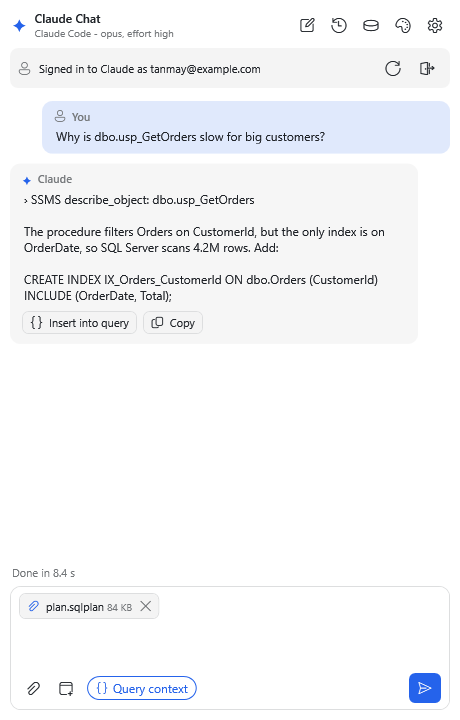
The buttons at the top
| Button | What it does |
|---|---|
| ✎ New chat | Starts a fresh conversation (the old one is saved) |
| ⟲ History | Opens an earlier chat so you can carry on |
| ⛁ DB diagram | Draws a diagram of your database’s tables right away |
| 🎨 Theme | Changes the colours, see Themes |
| ⚙ Settings | Chooses what Claude may do, see Settings |
Updating and uninstalling
- To update, download and run the newest setup. It replaces the old version.
- To uninstall, open Windows Settings > Apps > Installed apps, find SSMS Claude Chat and click Uninstall.